Capturing Errors
Once initialized in your code, the Sentry SDK will capture various types of events and notify you about them in real-time, depending on the alert rules you've configured. With the Django app already running on your localhost, let's try them out.
Note: If you're using your own source code, follow Capturing your first event to introduce an error into your app.
Unhandled Errors
The Sentry SDK will automatically capture and report any Unhandled Error that happens in your application runtime without any additional configuration or explicit handling. Generally, Unhandled Errors are errors the aren't caught by any except (or try/catch) clause.
In your browser, launch the local Django app in the following endpoint to trigger an unhandled error:
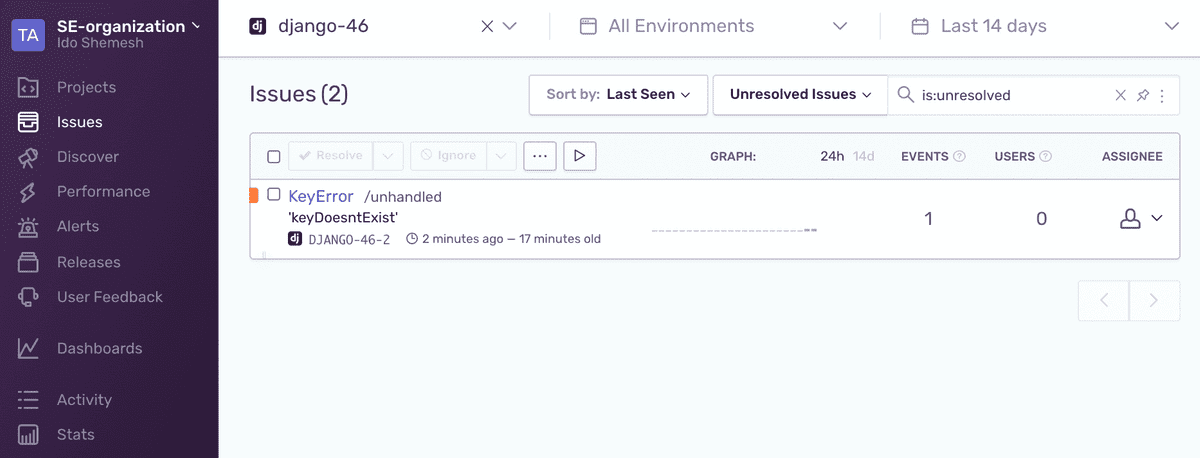
http://localhost:8000/unhandled.If you've set up an alert rule, you should be notified about the error. Otherwise, open the
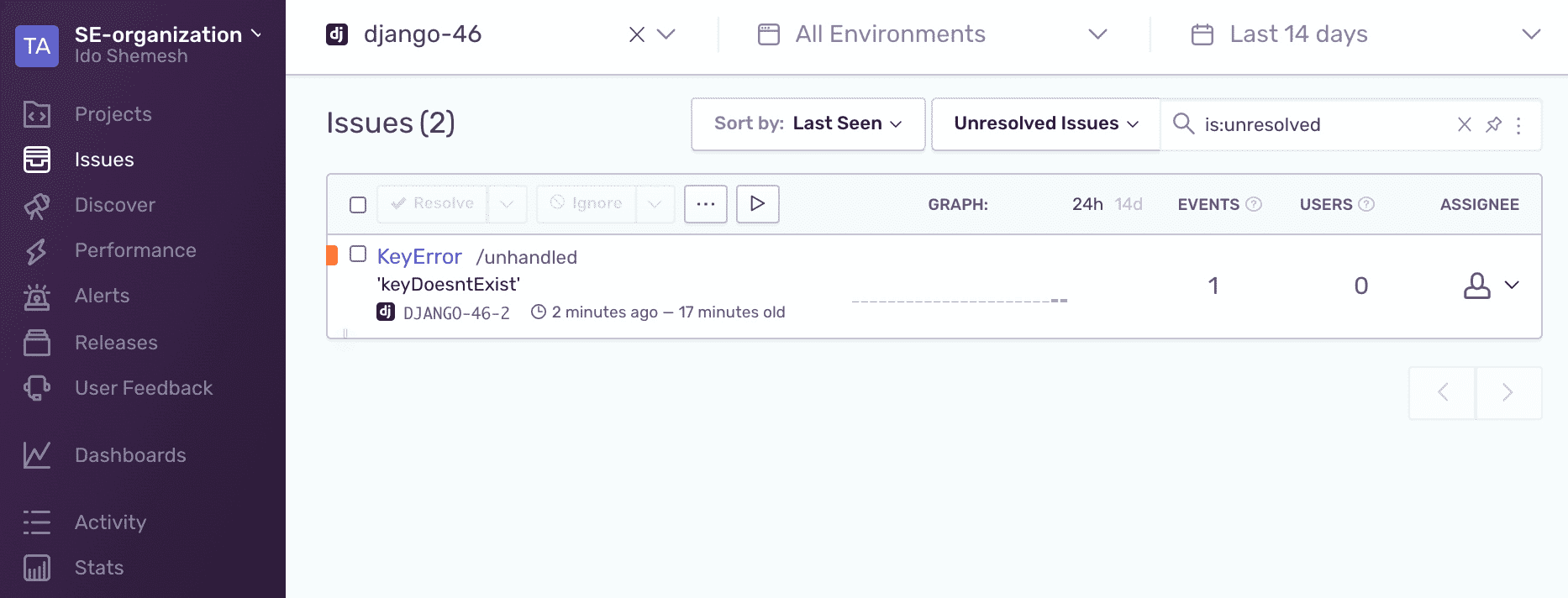
Issuesview in your Sentry account.Notice the unhandled exception appears in your Issues Stream.
Click on the issue, to open the issue details page.
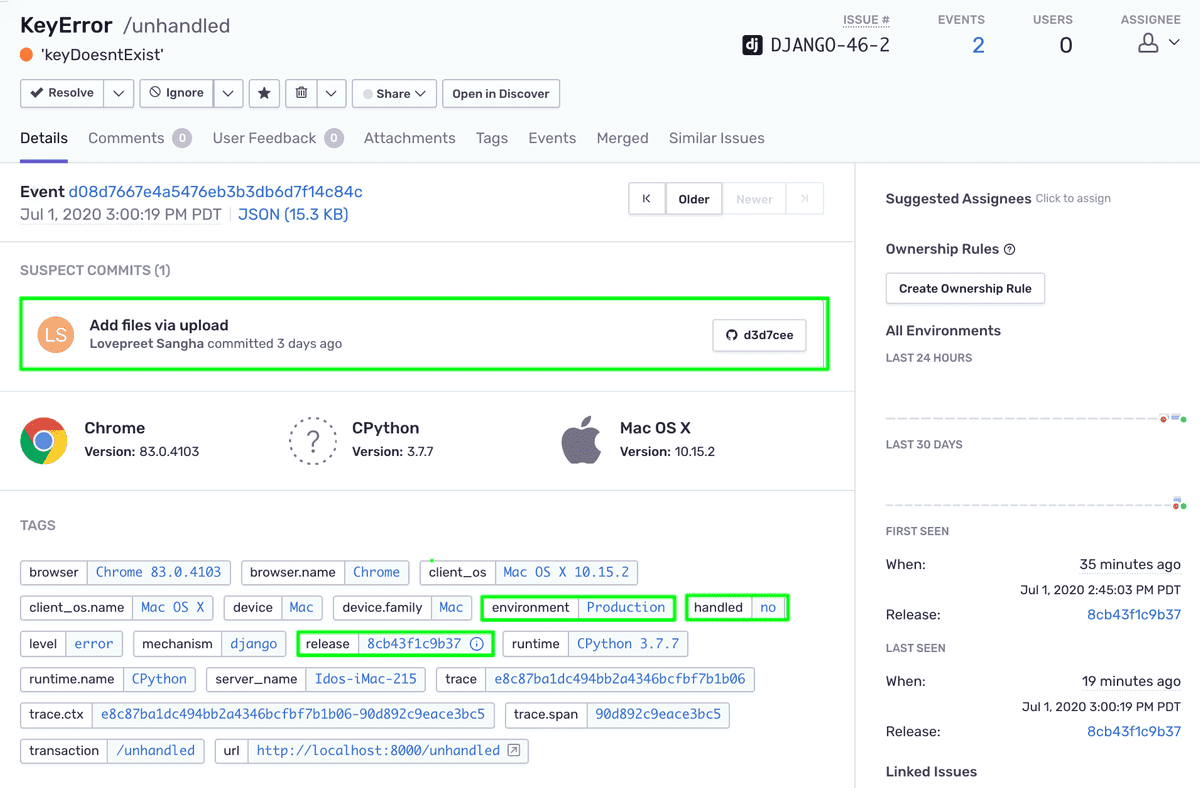
Notice that the event:
Is tagged with the
environmentandreleaseoptions we've set in the previous tutorial andhandled:no- marking this event as an unhandled error.Contains a
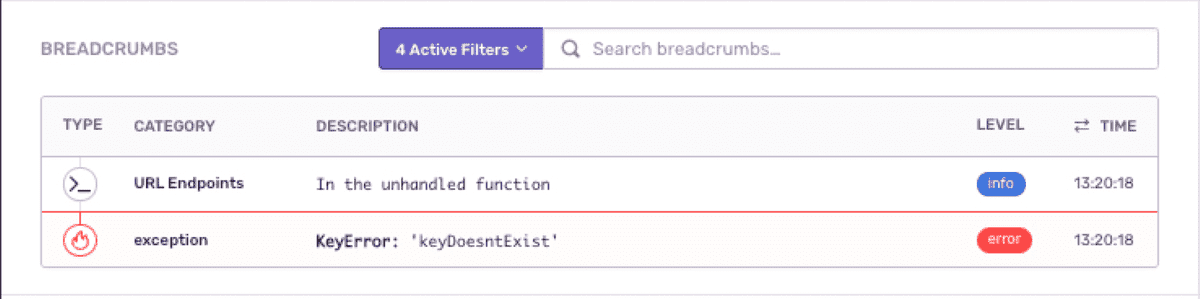
Suspect Commitenabled by the commit tracking feature we enabled previously.Contains the custom breadcrumb we added through the SDK.

Handled Errors
The Sentry SDK contains several methods that you can utilize to explicitly report errors, events, and custom messages in except clauses, critical areas of your code, etc.
Capture Exception
Open the
views.pyfile. Notice that we importsentry_sdklib which contains thecapture_exceptionmethodCopiedimport sentry_sdkThe method is utilized to capture the exception handled by the except clause in
HandledErrorView.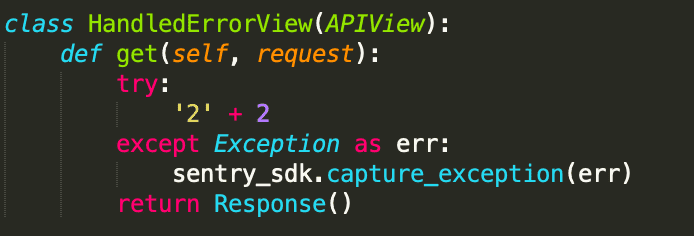
To try it out on your localhost, trigger the following endpoint:
http://localhost:8000/handled.Similar to the unhandled error, open the new issue's detail page.
Notice that the event is tagged with the same
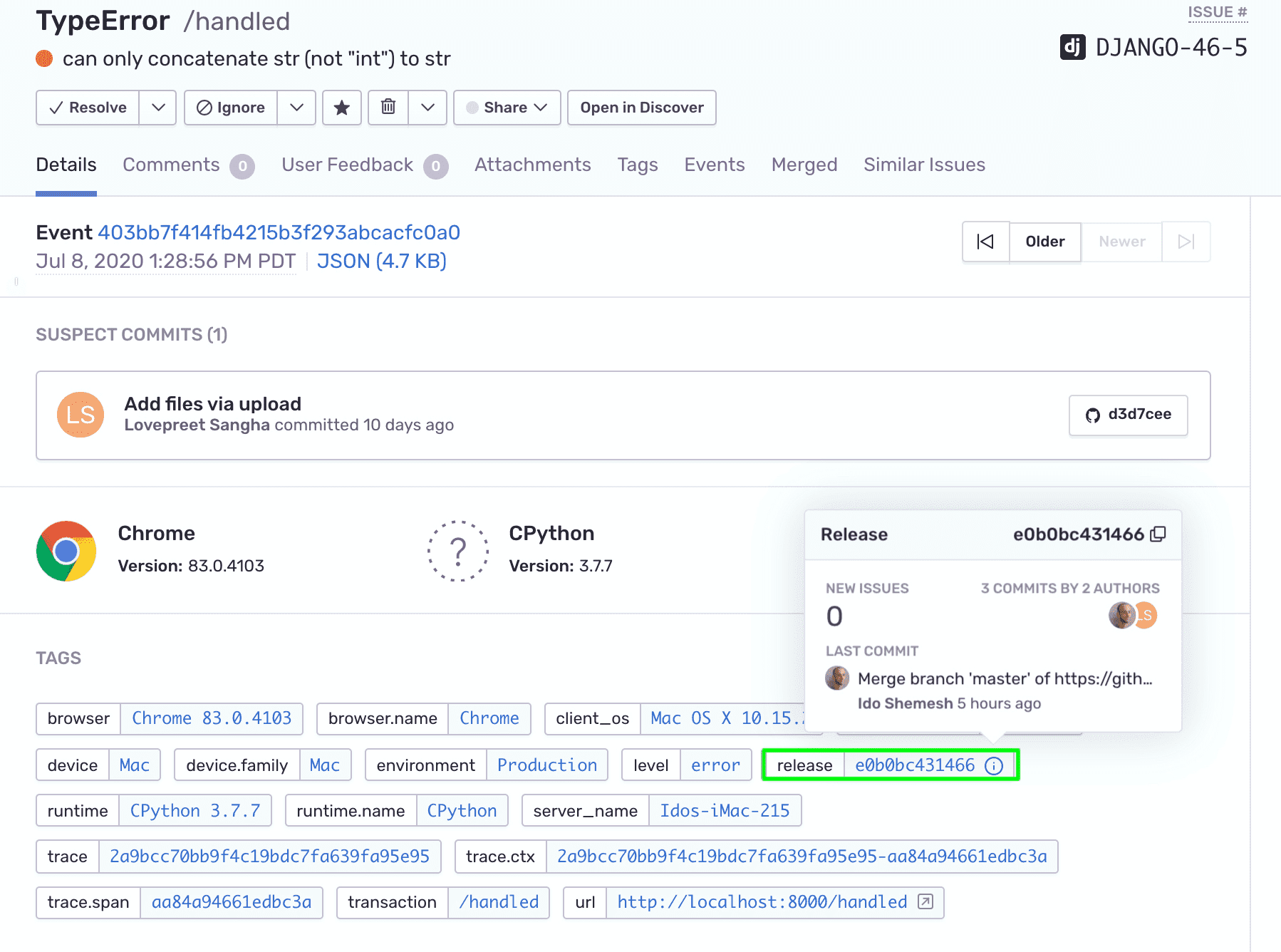
environmentandreleaseconfiguration options. Hover over theiicon in the release tag to reveal the release information and the commits associated with it.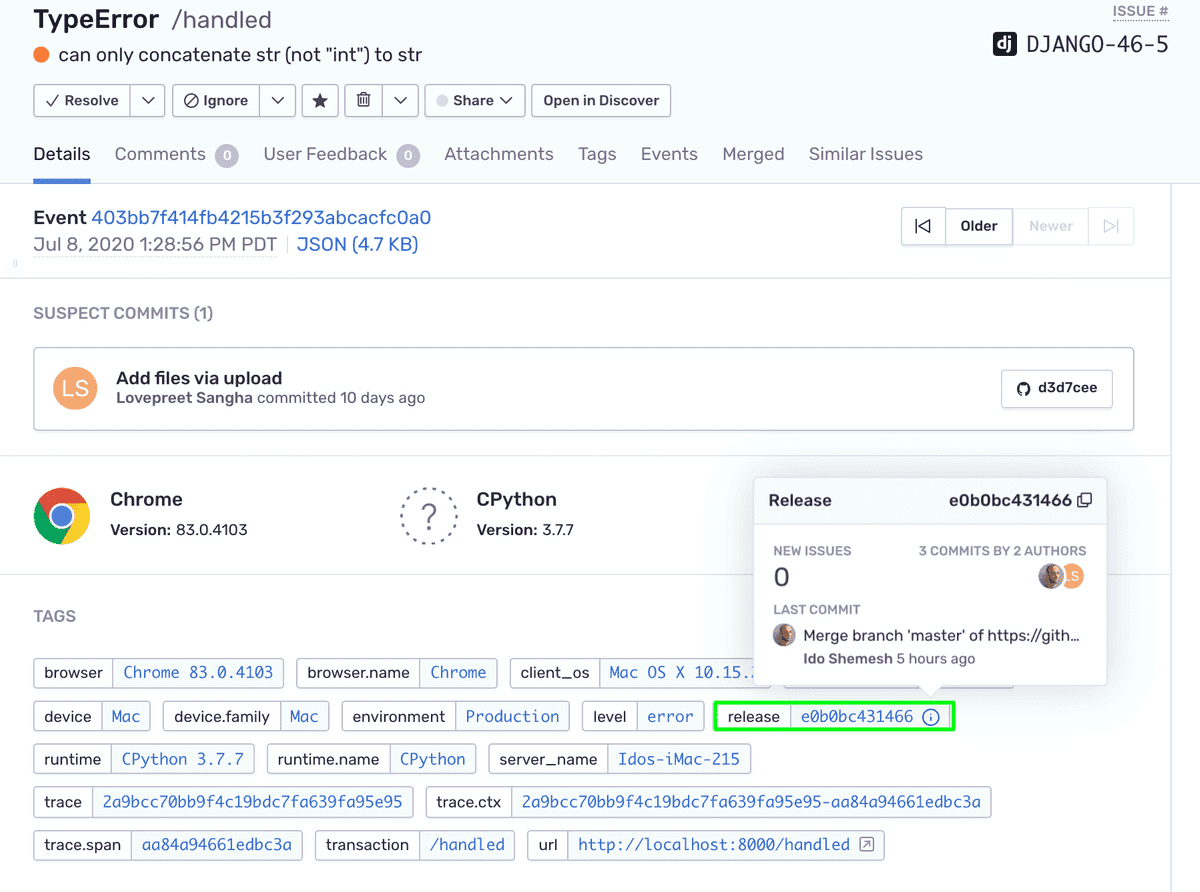
Click on the release's
iicon to navigate to the release page.
Capture Message
Typically, capture_message is not emitted but there are times when a developer may want to add a simple message within their app for debugging purposes and capture_message is great for that.
In the
views.pyfile, thecapture_messagemethod is made available through thesentry_sdklib import.You can use it anywhere within your app. In our example, we've created a dedicated view class
CaptureMessageViewto trigger and capture a message we want to trackCopiedsentry_sdk.capture_message("You caught me!")To try it out on your localhost, trigger the following endpoint:
http://localhost:8000/message.As before, open the new issue’s detail page from your Issues Stream.
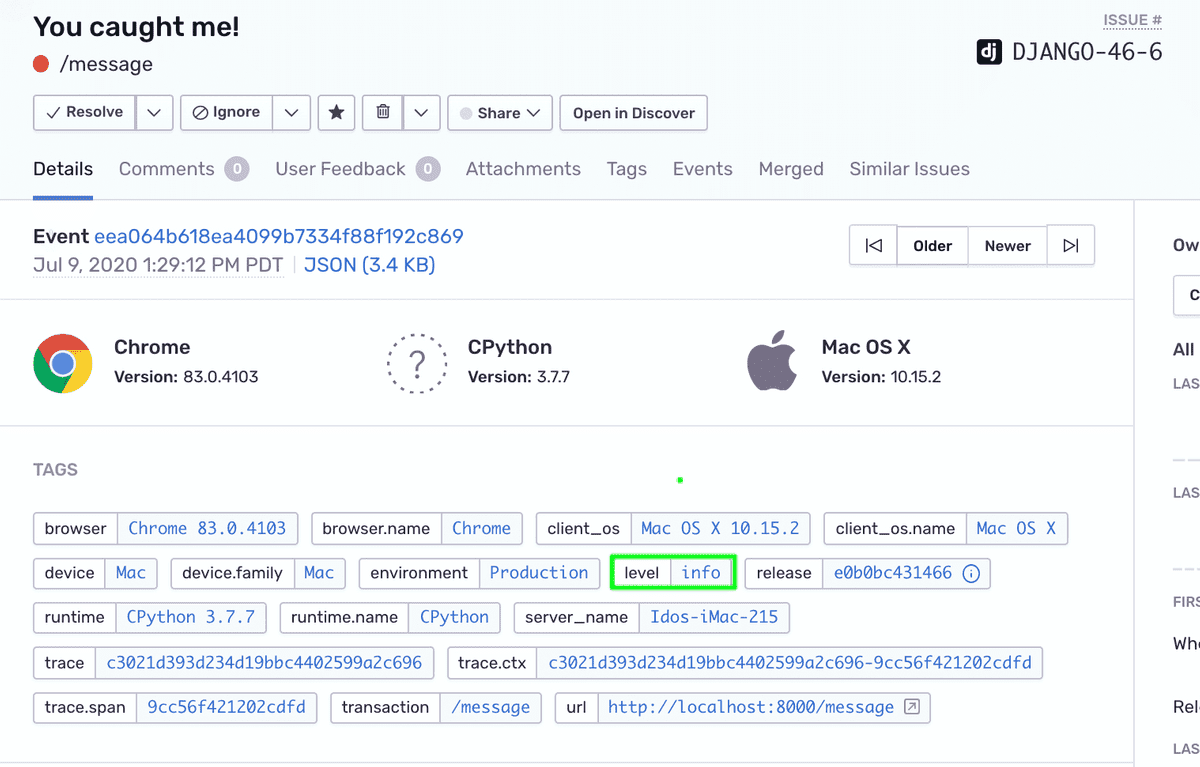
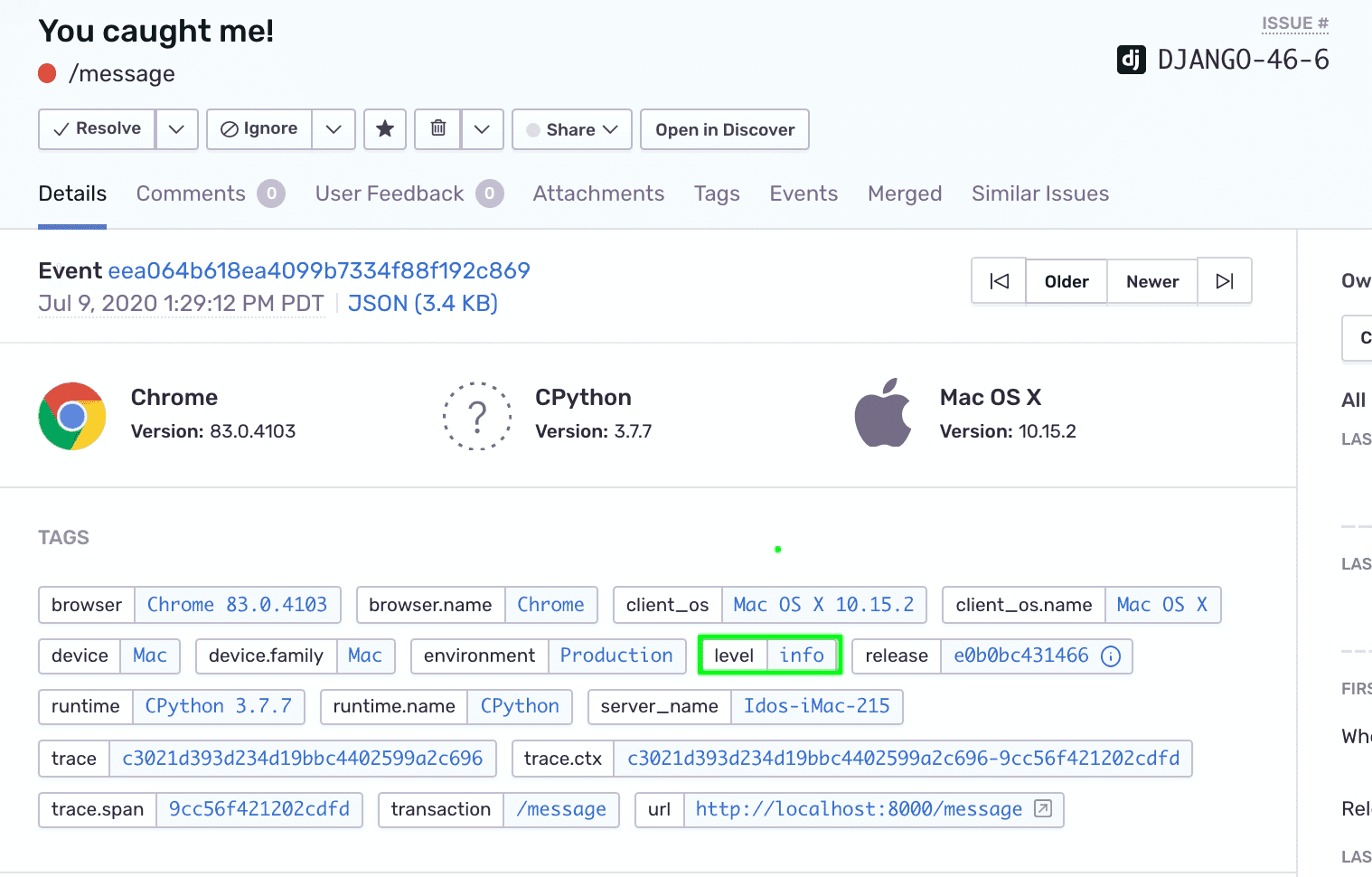
By default captured messages are marked with a severity level tag
level:infoas reflected in the tags section. However, thecapture_messagemethods accept an optional severity level paramete.In the
views.pyfile, go ahead and change thecapture_messagemethod to:Copiedsentry_sdk.capture_message("You caught me!", "fatal")Save the changes and trigger the
/messageendpoint again. (Changes should be applied immediately throughStateReloader)Notice that the severity level tag on the new event now shows
level:fatal.
Enriching your Event Data
You can enrich your event and error data through the Sentry SDK by adding custom tags and user context attributes. In addition to providing more context to your errors, those will expand your options to search, filter, and query through your event metadata. For more information on the advantages of enriching your data see Put your Data to Work.
Let's enrich the data of the message events we've captured with capture_message.
In the
views.pyfile, locate the line that triggerssentry_sdk.capture_message.Replace that line with the following code:
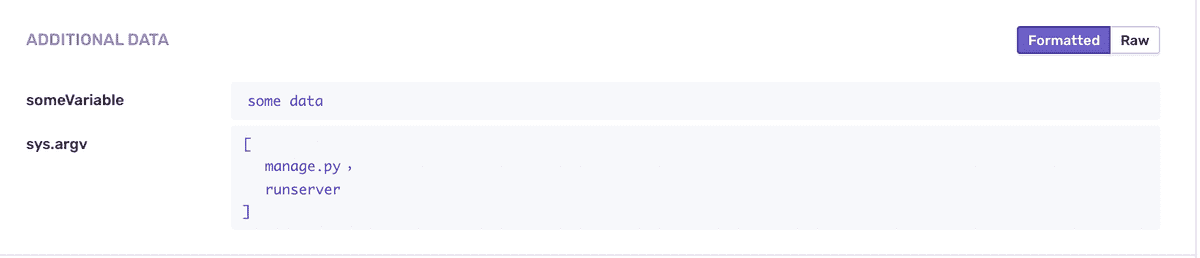
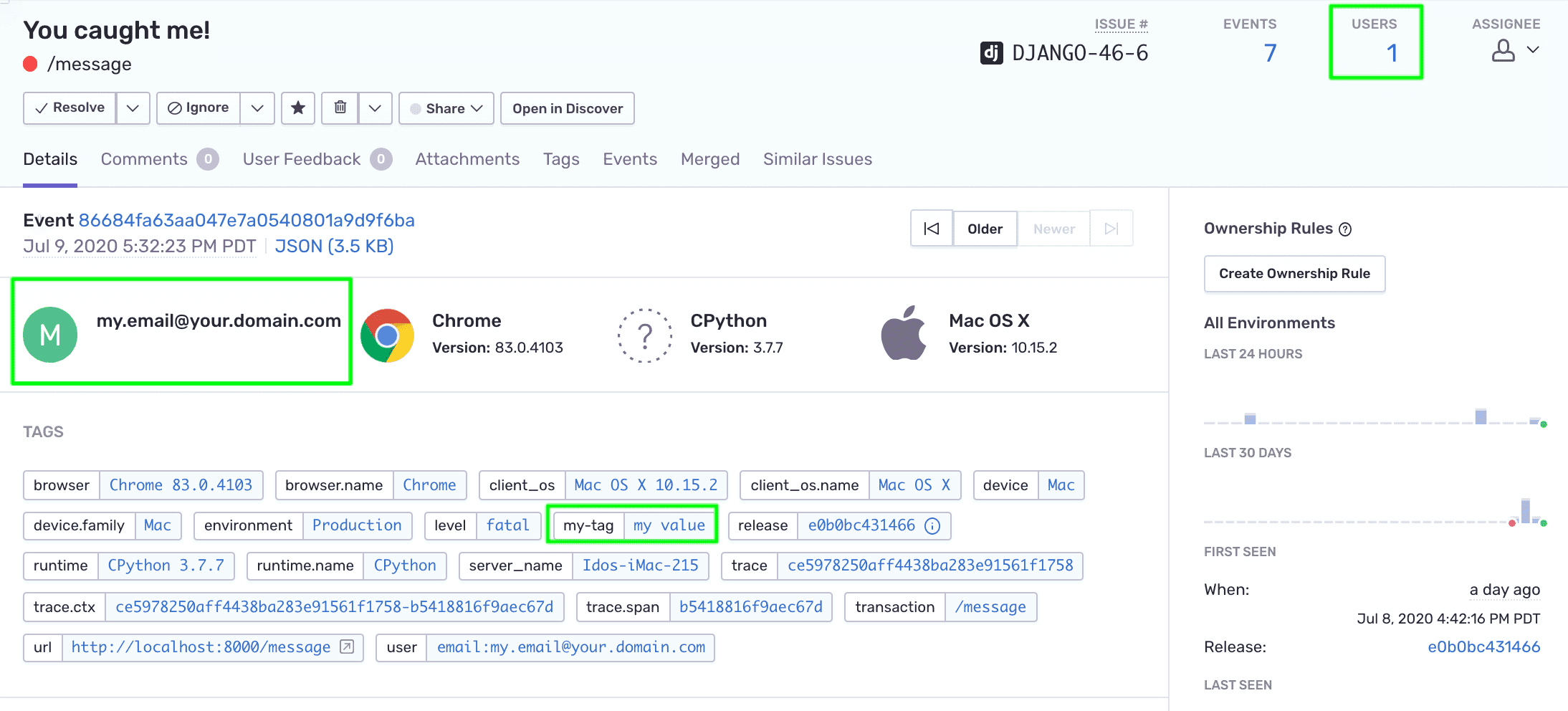
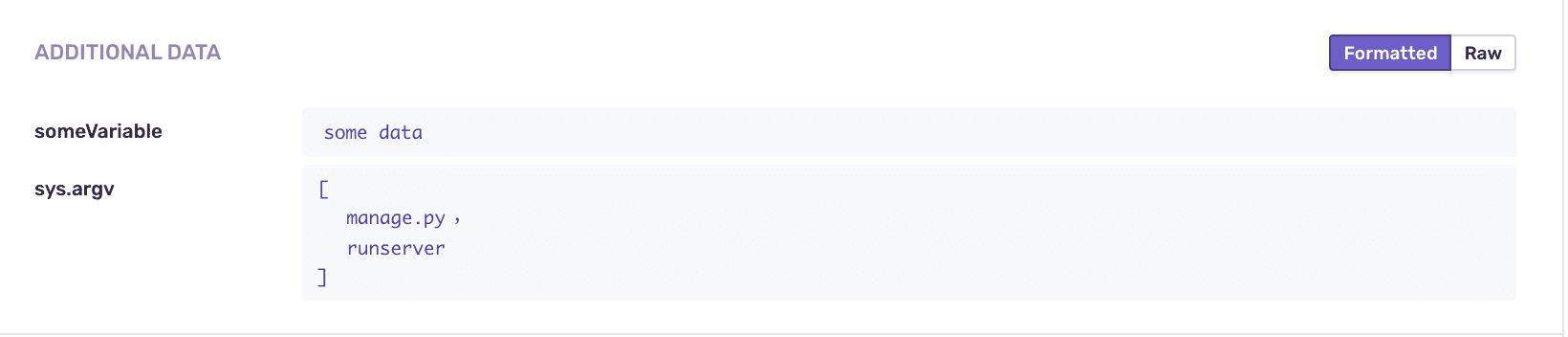
Copiedwith sentry_sdk.push_scope() as scope: scope.set_tag("my-tag", "my value") scope.user = { "email" : "my.email@your.domain.com" } scope.set_extra("someVariable", "some data") sentry_sdk.capture_message("You caught me!", "fatal")Note: we're using the
push_scopemethod that allows us to send data with one specific event on a local scope. We're setting a custom tag, user context attribute (email), and extra data on the local scope to enrich the data on the message event.Save your changes and trigger the
/messageendpoint again.Open the issue’s detail page from your Issues Stream.
Notice that:
- The user email is now displayed on the details page and the number of unique users impacted by this event is reflected in the issue's header.
- The custom tag is now available (and searchable) in the list of tags.
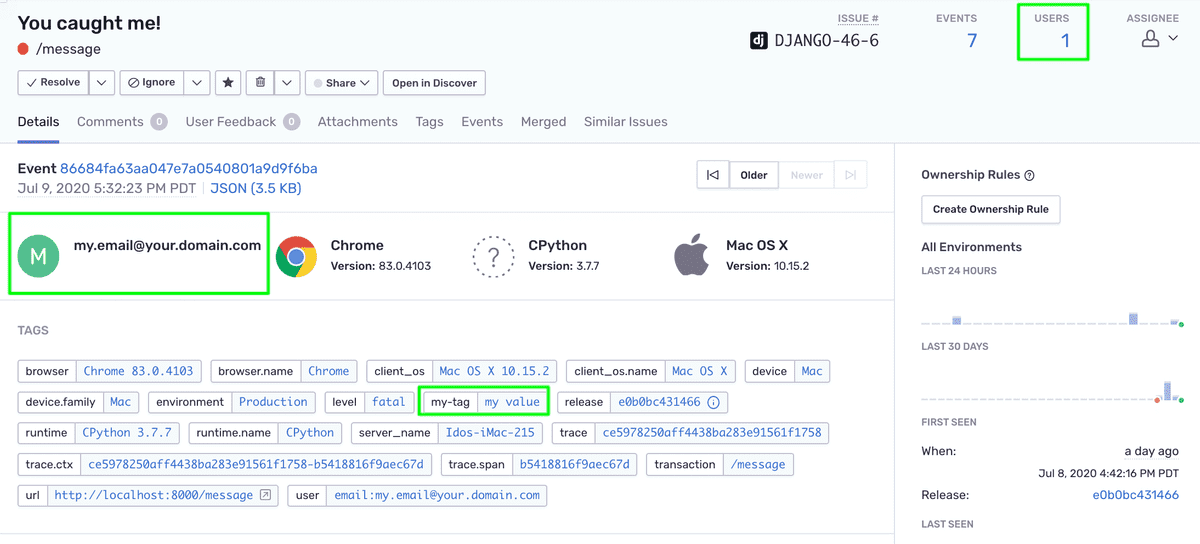
- The extra data we set on the SDK is reflected in the Additional Data context