Enable Readable Stack Traces in your Errors
A release version is a dynamic identifier that changes whenever you ship a new version of your code. When you give Sentry information about your releases, you unlock several features, including source mapping of minified JavaScript stack traces upon ingestion. For more information, see Releases.
In this section, we will:
Utilize the
Sentry CLIduring the build process to update your Sentry account by:- Creating a new release version
- Uploading the project's latest source maps (and associate them with the new release version)
Add the release version to the Sentry SDK configuration --- this will associate any error captured by the SDK in our app to this specific release. Sentry will use the release's uploaded source maps to unminify the error's stack trace.
As part of the CI/CD workflow for this app demo, we're using a Makefile to handle the sentry-cli related tasks through make targets. If you're using a different code base, you can still apply the settings and commands described below to your specific setup or run them directly in a command-line shell as part of your build process. For more information, see Command Line Interface.
Step 1: Prepare the build environment
We use the Makefile in the frontend-monitoring project to handle Sentry related tasks utilizing the sentry-cli. The CLI is already available through the project dependencies (see package.json) and requires several parameters to be available to run.
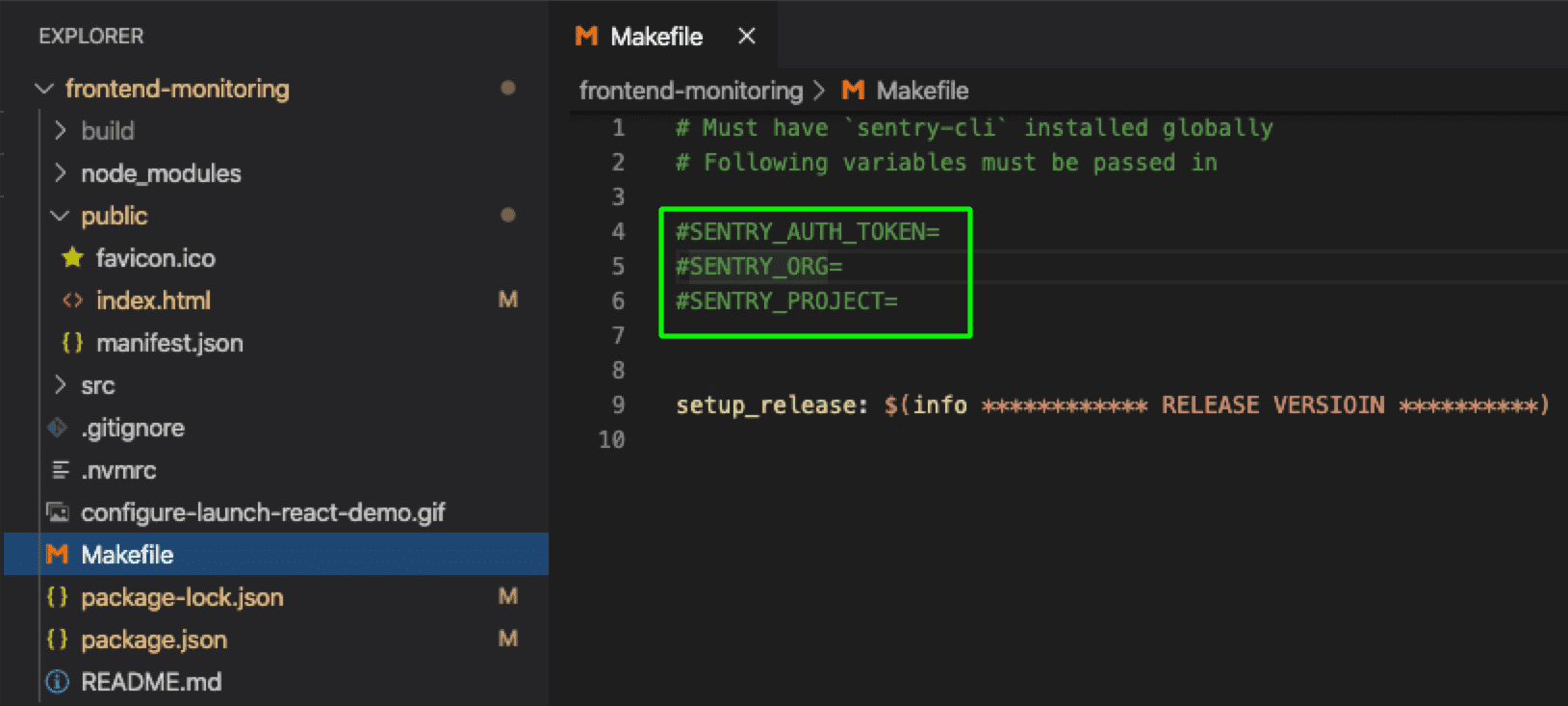
Open the
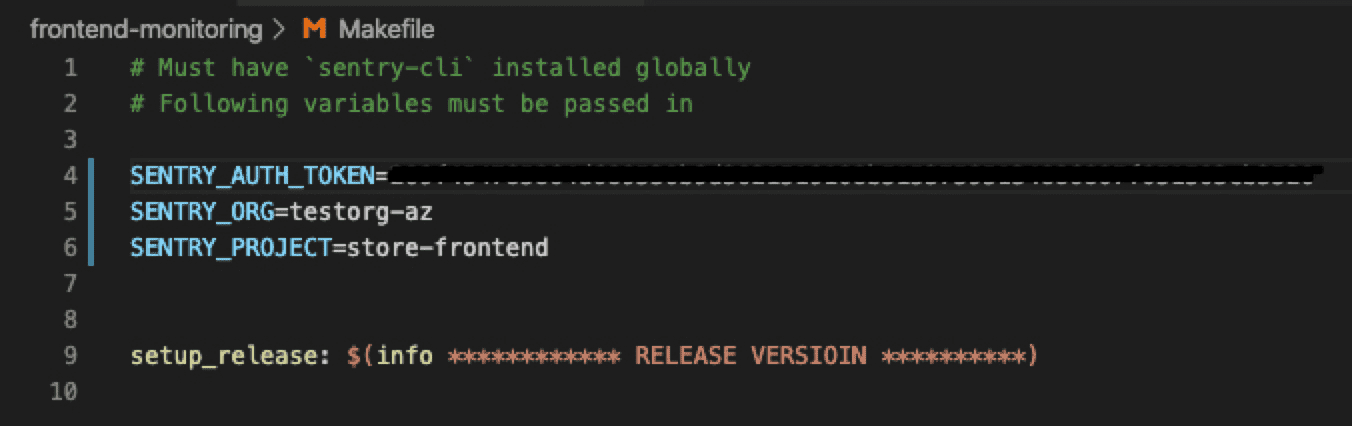
MakefileUncomment the commented environment variables
SENTRY_AUTH_TOKEN,SENTRY_ORG, andSENTRY_PROJECT(remove the leading #)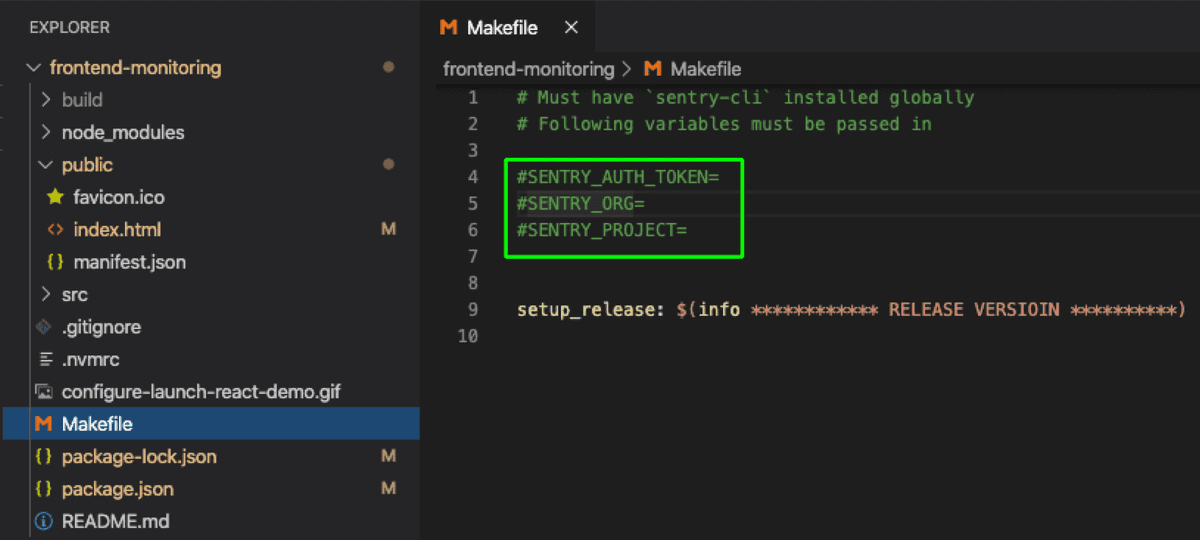
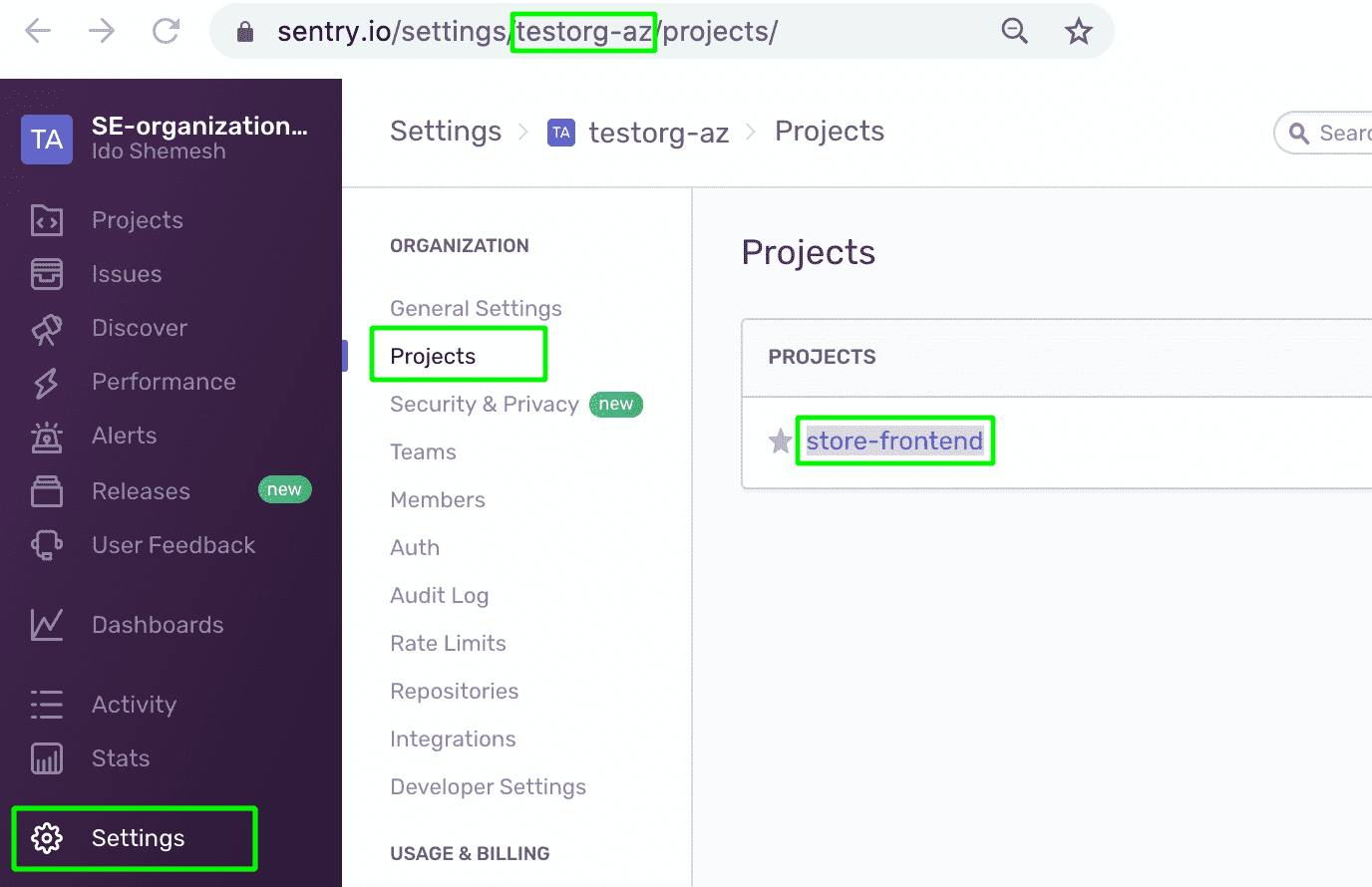
To find the SENTRY_ORG and SENTRY_PROJECT values
Open your Sentry account and click
Settings > ProjectsYour Organization ID is part of the browser URL (for example, https://sentry.io/settings/**SENTRY_ORG**/projects/)
The SENTRY_PROJECT value is the name that appears in the project tile
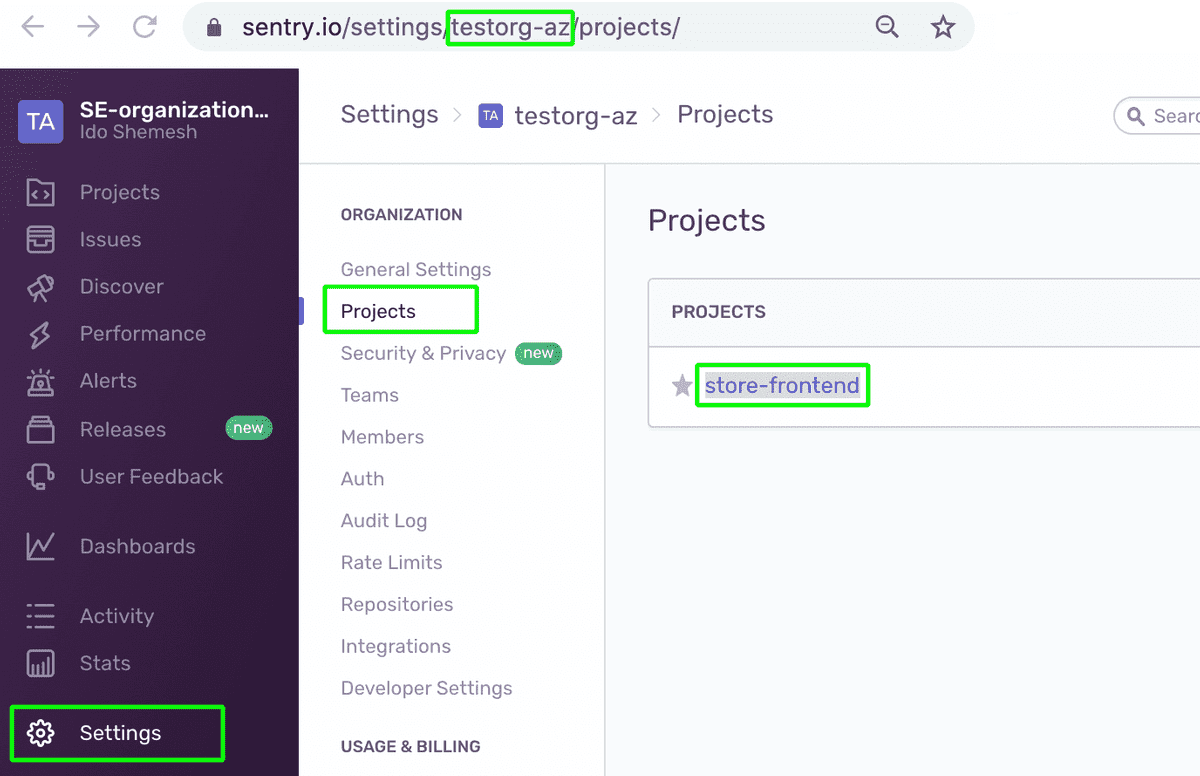
Copy the values and paste them in the Makefile
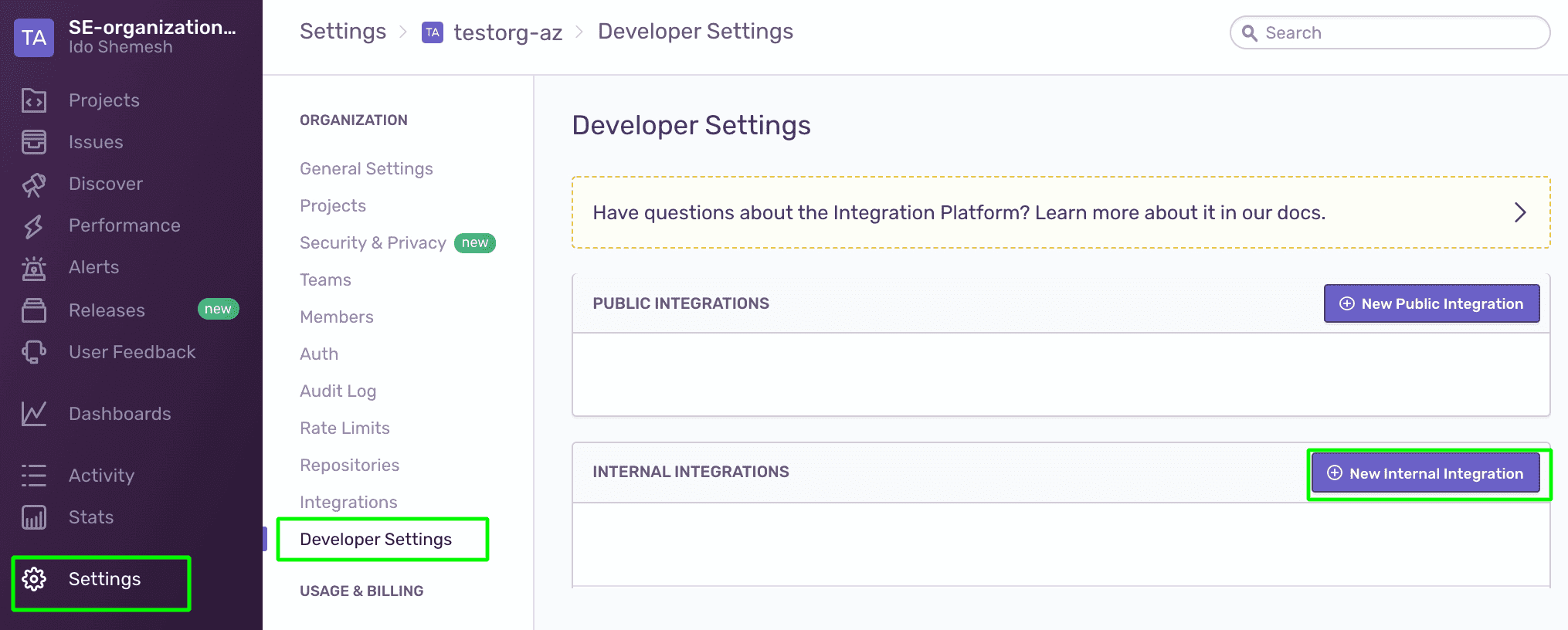
To create a
SENTRY_AUTH_TOKENClick on the
Developer Settingsmenu option name from the left side panel to create a new integration and org-level auth tokenClick on
New Internal Integration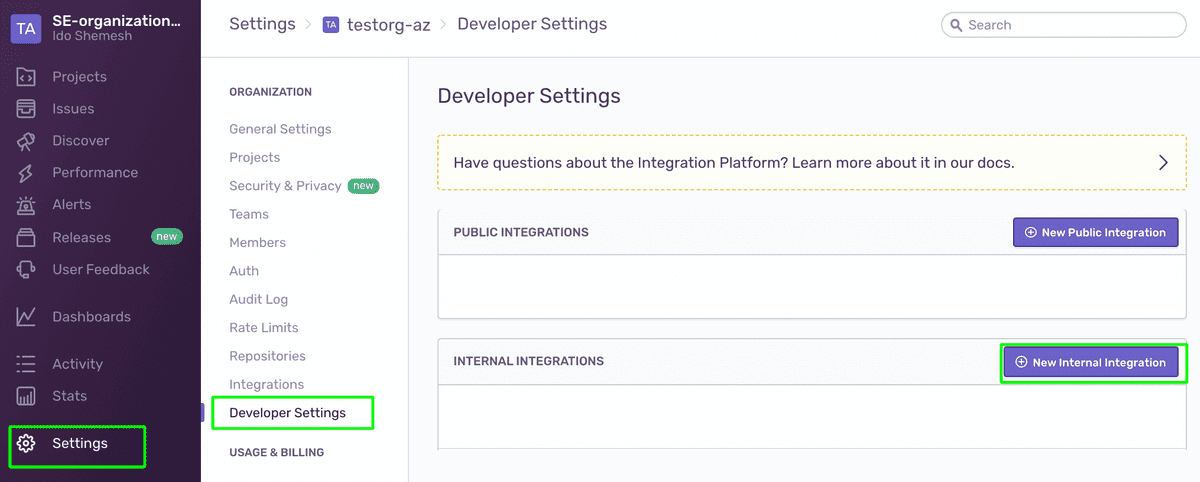
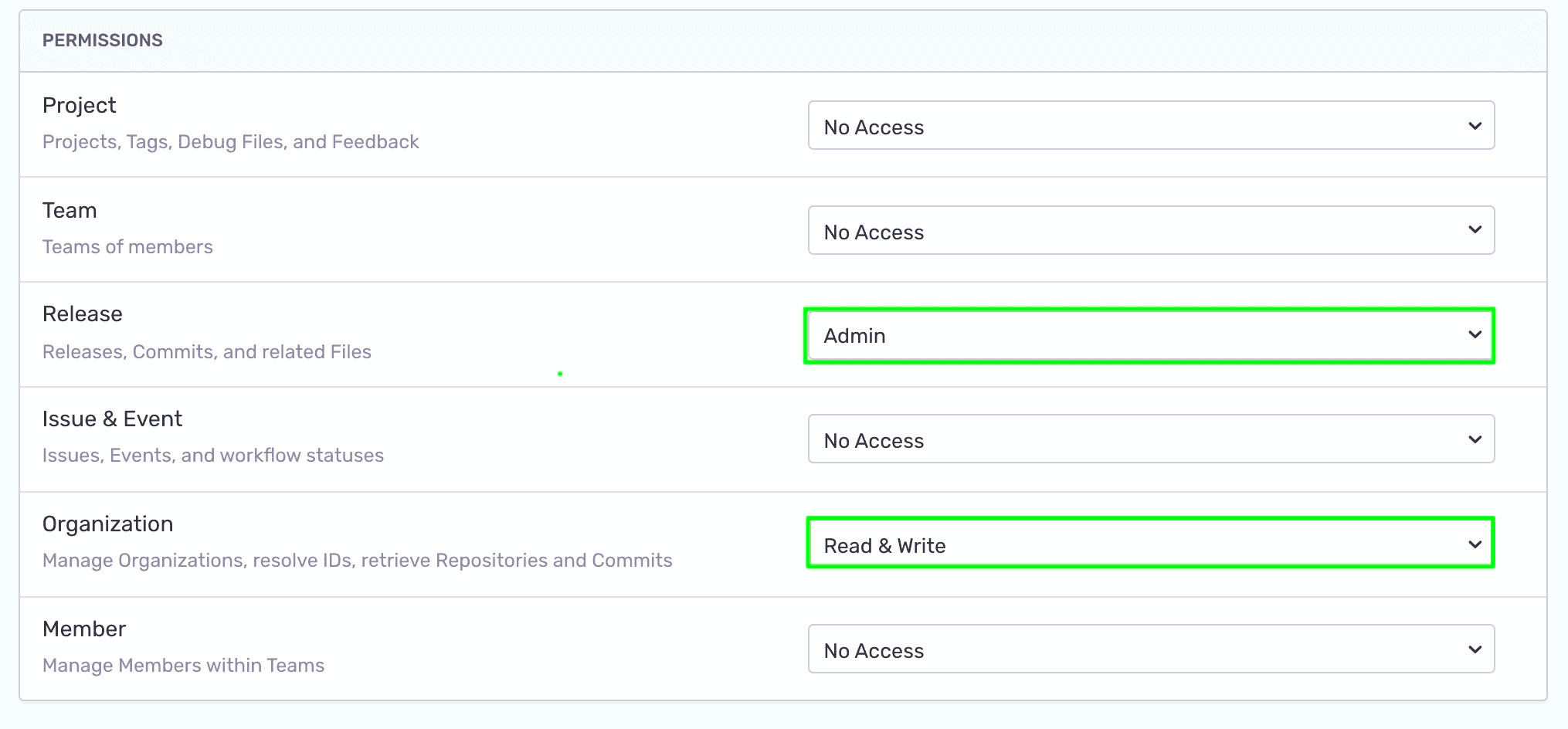
Enter a
NameUnder
PermissionssetRelease:AdminandOrganization:Read & Write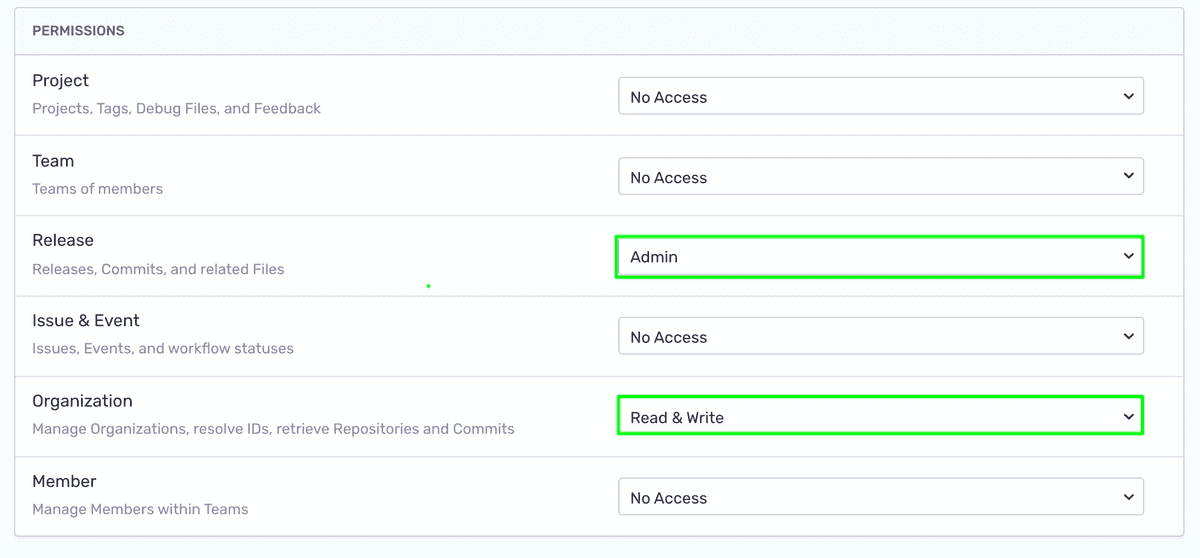
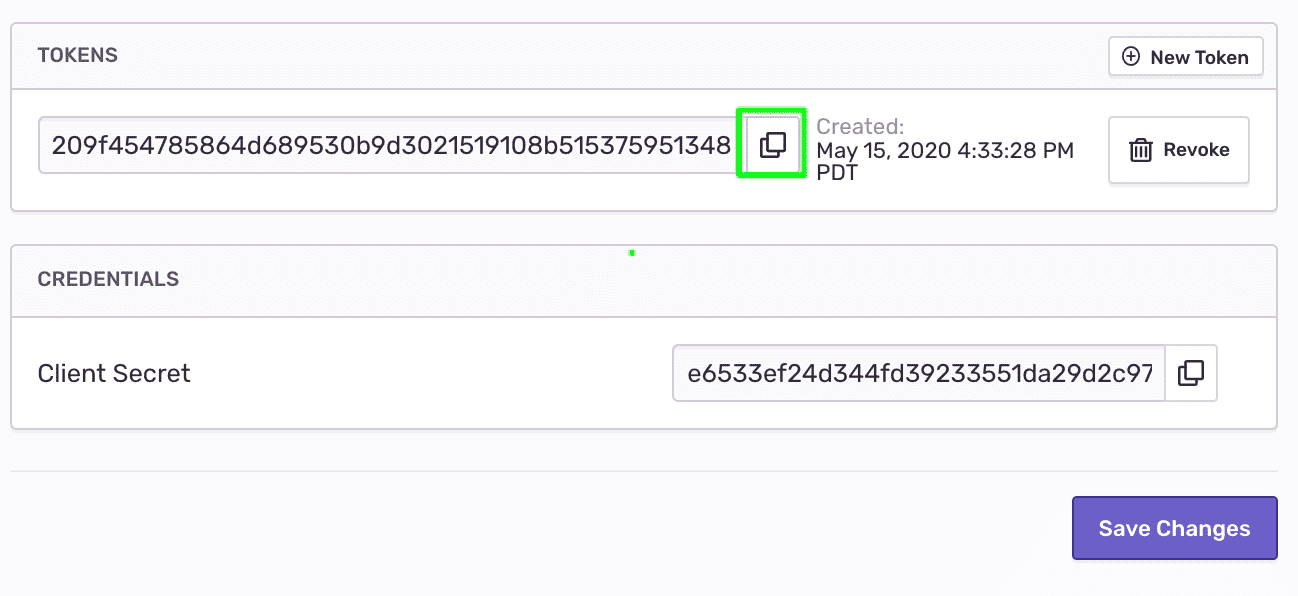
Click on
Save ChangesOnce the save is successfully confirmed, scroll down to the bottom of the page and copy the allocated token under
TOKENS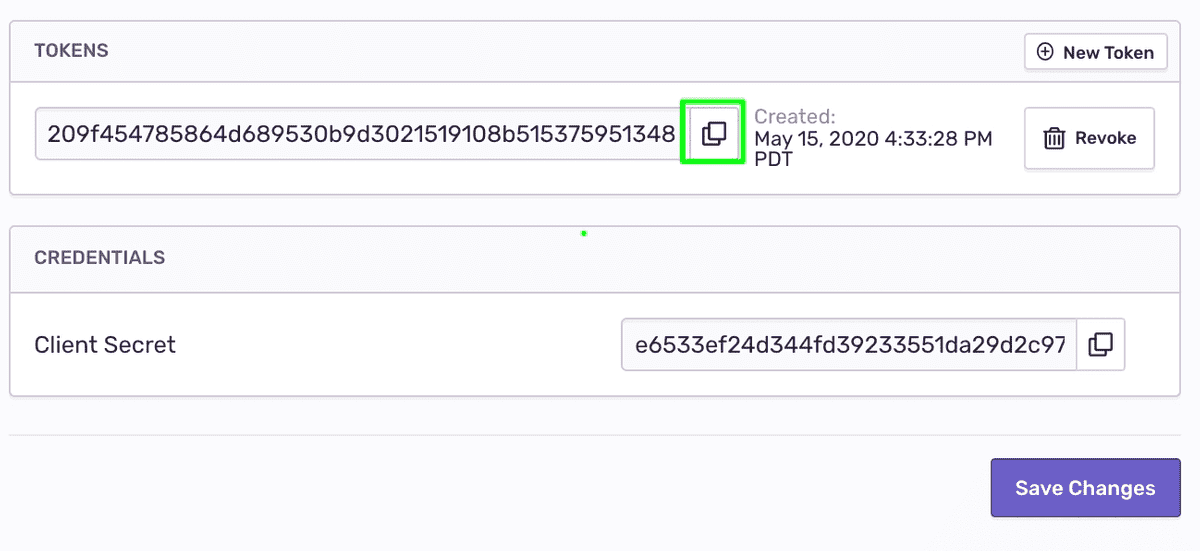
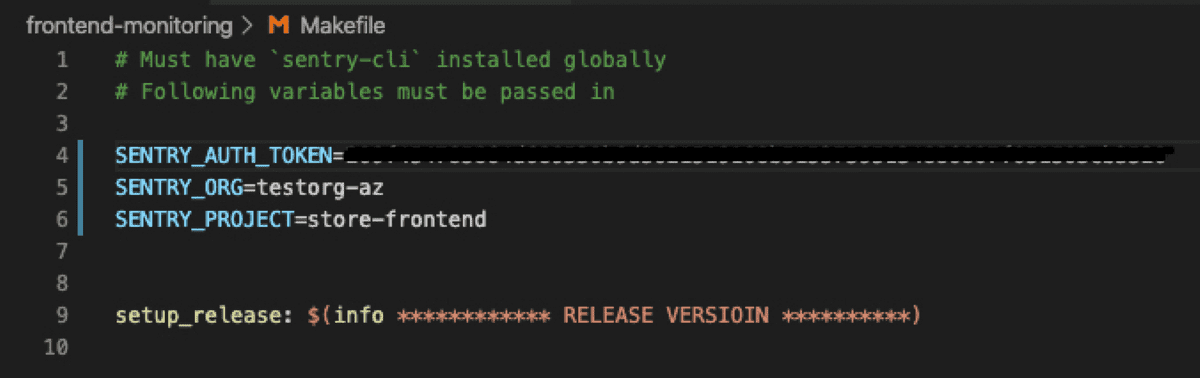
Paste the token in the Makefile
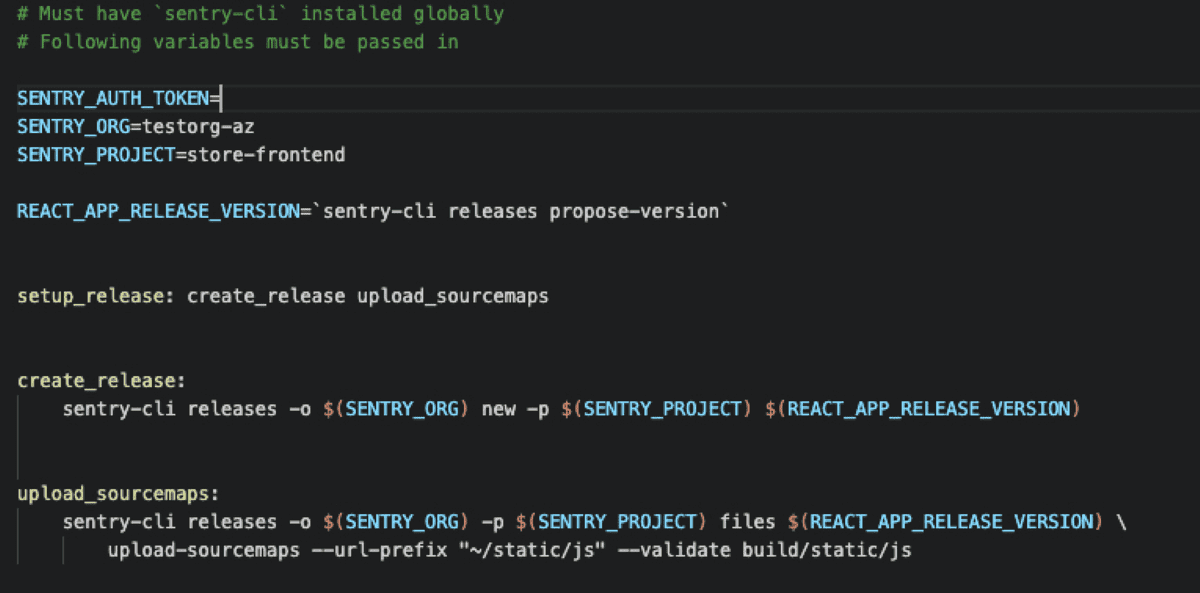
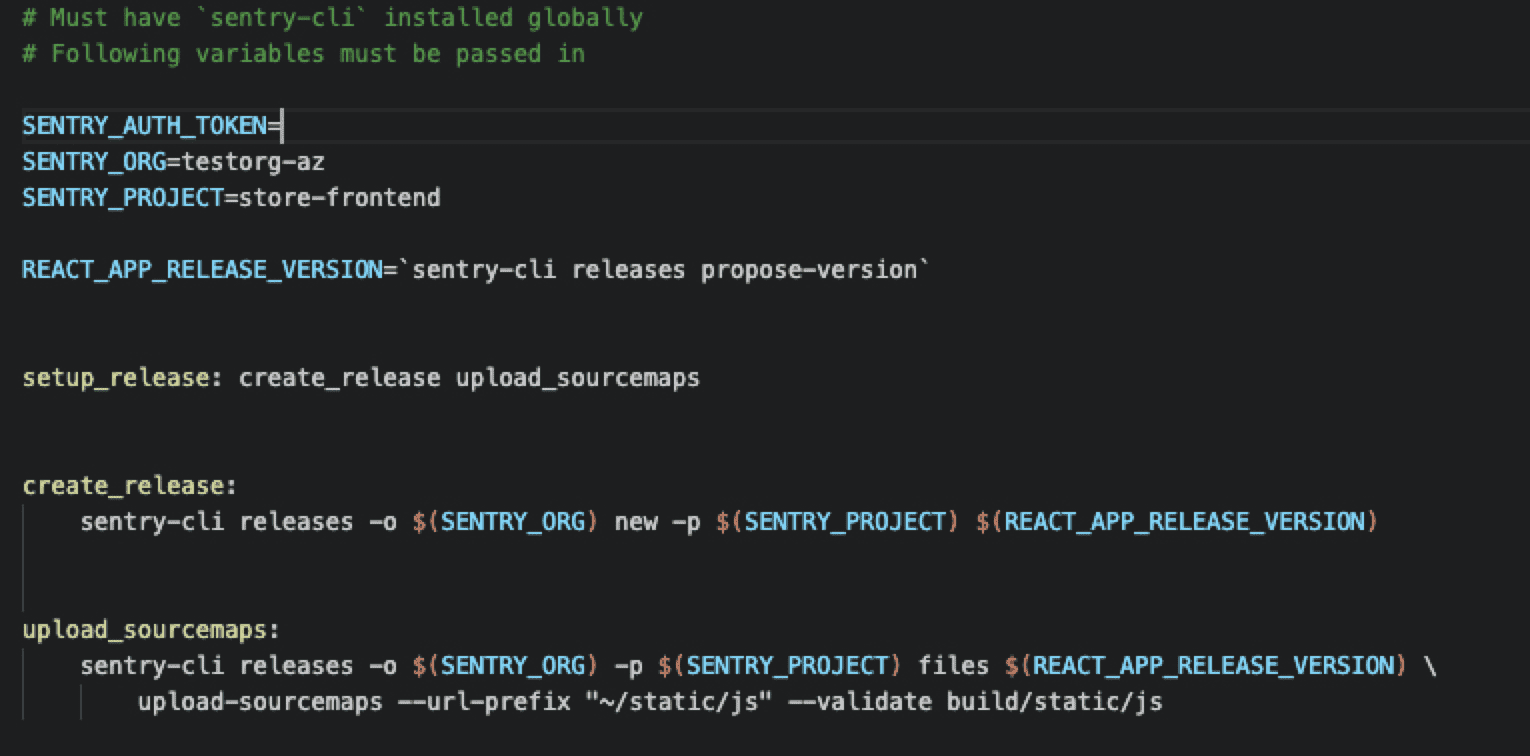
The Makefile should look like this:
Step 2: Create a release and upload source maps
Now we can invoke the sentry-cli to let Sentry know we have a new release and upload the project's source maps to it.
- You can set a custom release version to suit your naming conventions or let the Sentry CLI propose a version.
- To build the
frontend-monitoringproject, we use thereact-scriptspackage that also generates source maps under ./build/static/js/
In the Makefile, add a new environment variable for the release version, utilizing Sentry CLI to propose the version value
CopiedREACT_APP_RELEASE_VERSION=`sentry-cli releases propose-version`At the bottom of the Makefile, paste the following targets utilizing the Sentry CLI to:
- Create a new release entity in your Sentry account
- Upload the project's source maps to the new release
Copiedcreate_release: sentry-cli releases -o $(SENTRY_ORG) new -p $(SENTRY_PROJECT) $(REACT_APP_RELEASE_VERSION) upload_sourcemaps: sentry-cli releases -o $(SENTRY_ORG) -p $(SENTRY_PROJECT) files $(REACT_APP_RELEASE_VERSION) \ upload-sourcemaps --url-prefix "~/static/js" --validate build/static/jsThe Makefile contains a
setup_releasetarget that is invoked from thepackage.jsonfile when running$ npm run deployto build and run the project. We'll use this target to invoke all the release related tasks.Replace the existing
setup_releasewith:Copiedsetup_release: create_release upload_sourcemapsYour Makefile should look like this:
Now that you created a release version, you can associate any errors captured in your app to that release through the SDK.
Open the
index.htmlfile and add a new configuration option to the SDK.Assign the release version environment variable to the
releasekeyCopiedSentry.init({ dsn: "<YOUR DSN KEY>", release: "%REACT_APP_RELEASE_VERSION%", });Note: the release version environment variable is set in the project.json during build time and is injected into the generated markup.
Step 3: Try your changes --- generate another error
If your terminal is still serving the demo app on localhost, click
^Cto shut down the local serverBuild, deploy, and rerun the project by running:
Copied> npm run deployNote: A Makefile is generally unforgiving when it comes to indentation. If you're getting unexpected errors while running the above command, make sure the
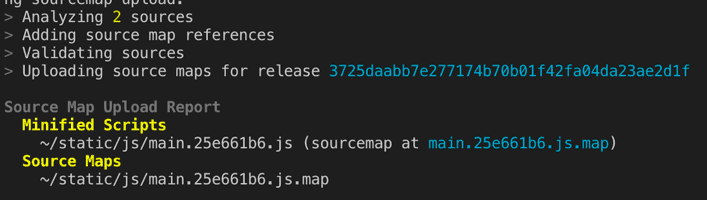
sentry-clicommands are properly prefixed with atab.Take a look at the terminal log. Notice that the minified scripts and source maps were uploaded to the release version.
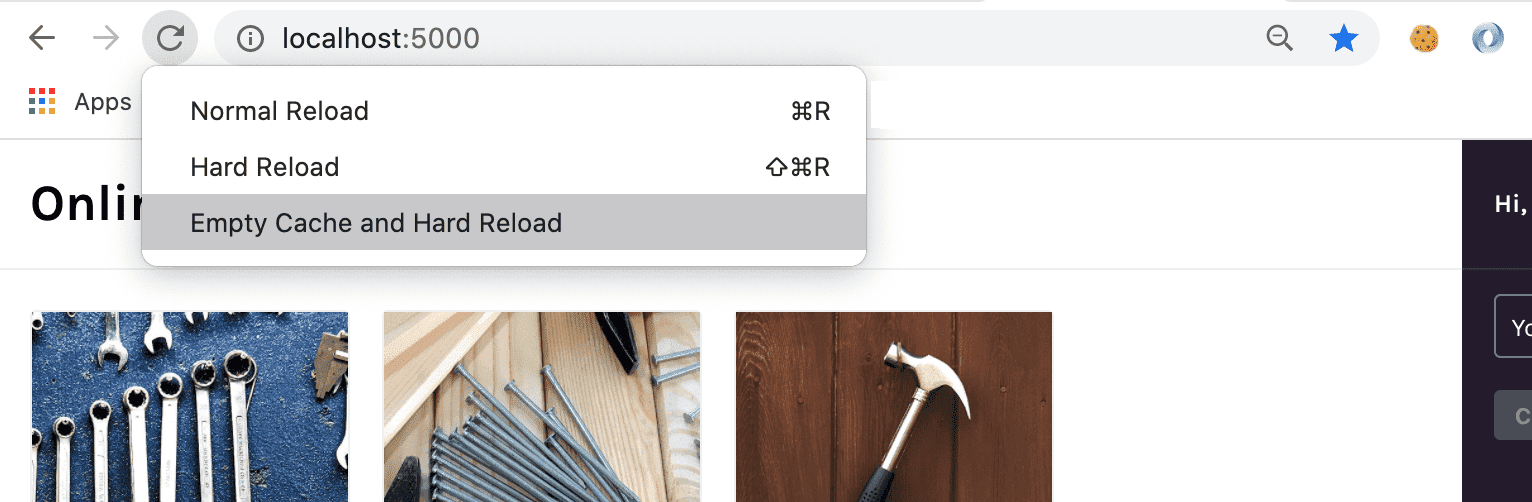
In your browser, make sure that the dev console is open and perform an
Empty Cache and Hard Reloadto make sure the updated code is being served.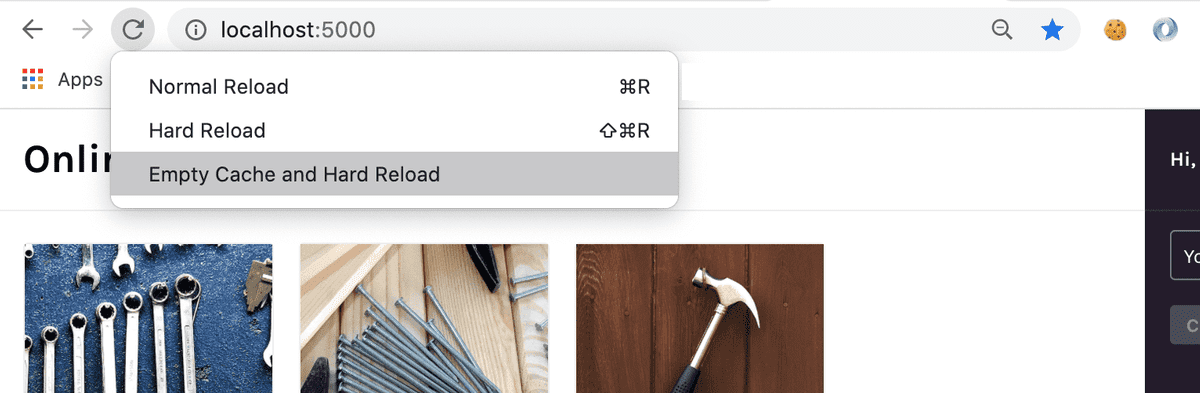
Generate the error again by adding products to your cart and clicking Checkout
Check your Email for the alert about the new error and click View on Sentry to open the issue page
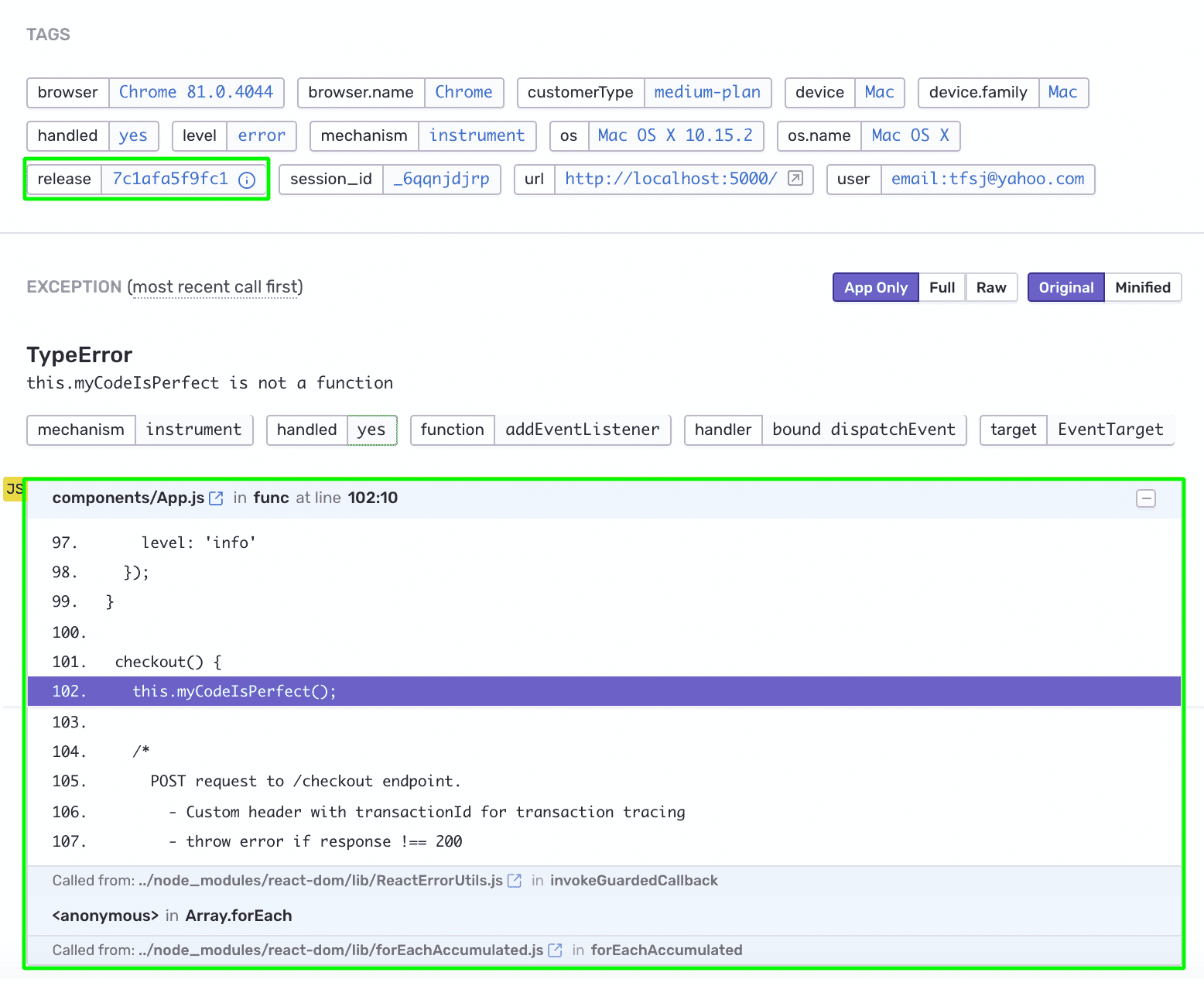
Notice that
- The event is now tagged with the
Release ID - The error stack trace is now un-minified and includes the file name, method name, line and column number, and source code context in every stack frame
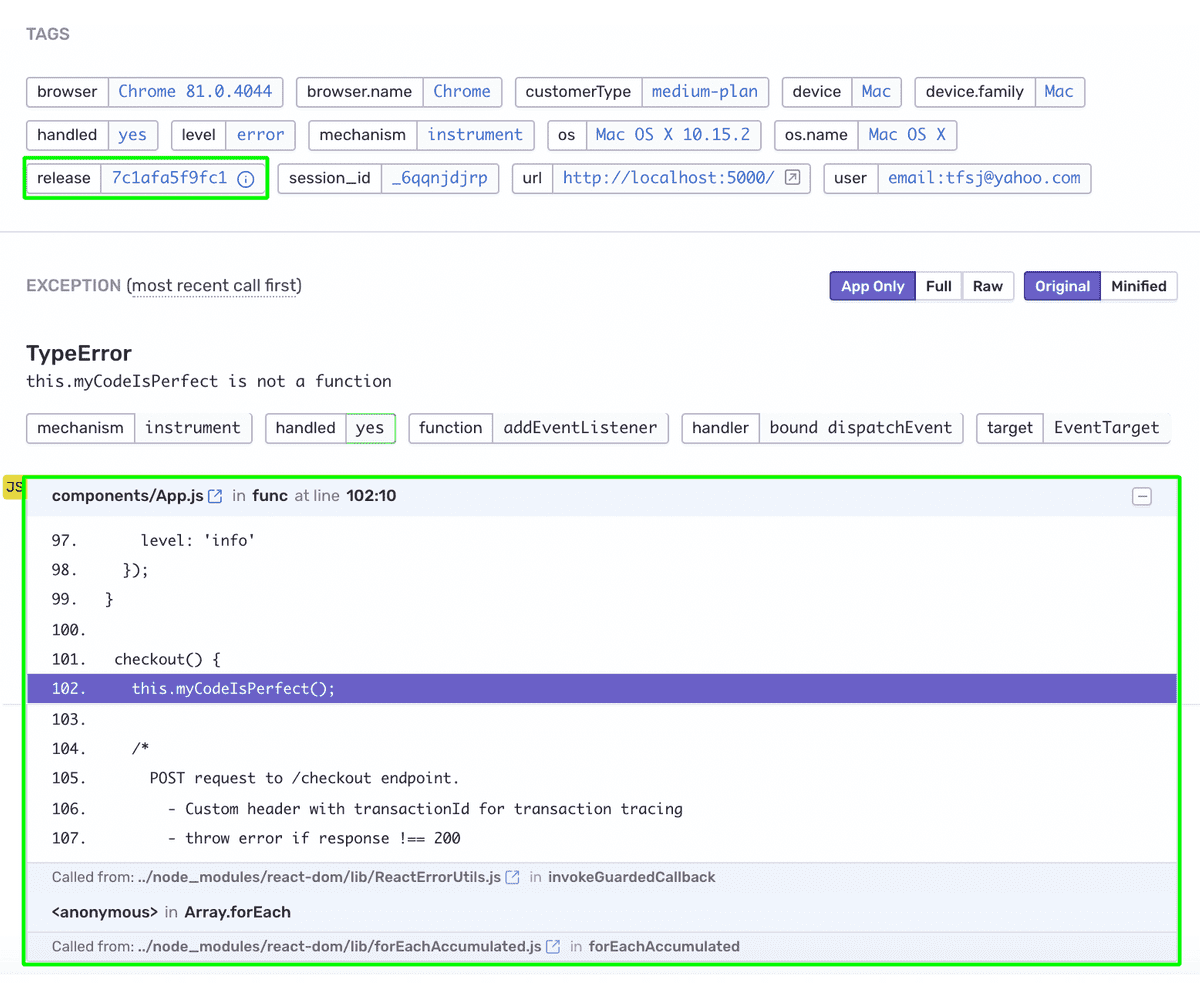
- The event is now tagged with the
Step 4: Explore the release
Creating a release version and uploading the source maps through the Sentry CLI, creates a Release entity in your Sentry account.
Click on
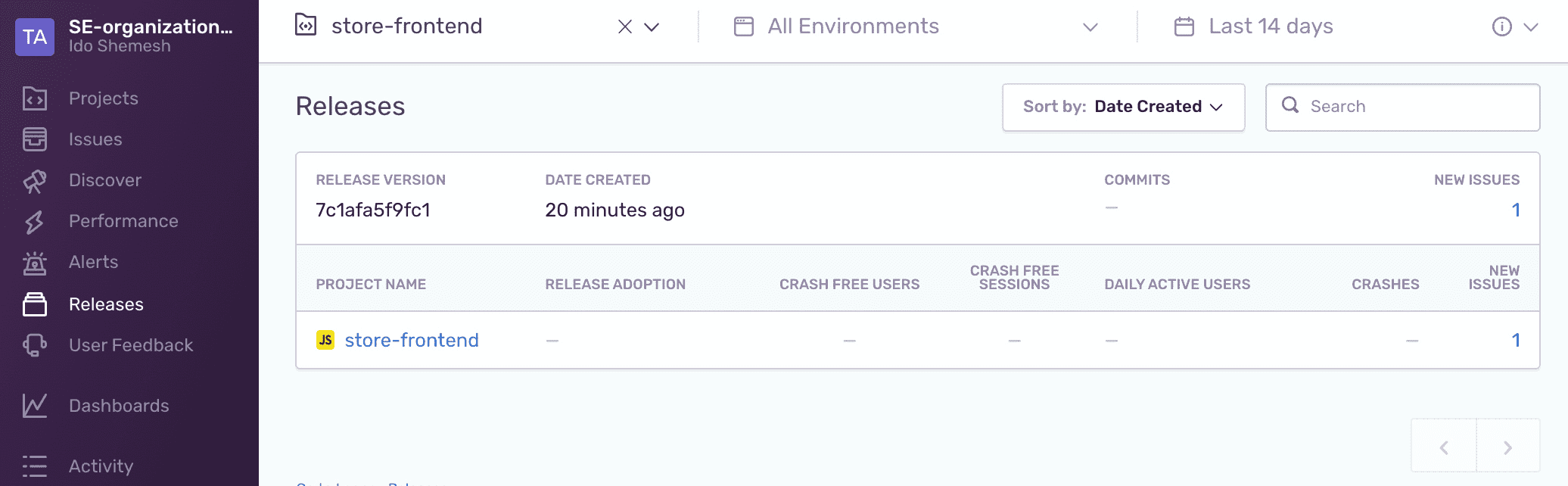
Releasesfrom the left side panel, notice that a new release version was created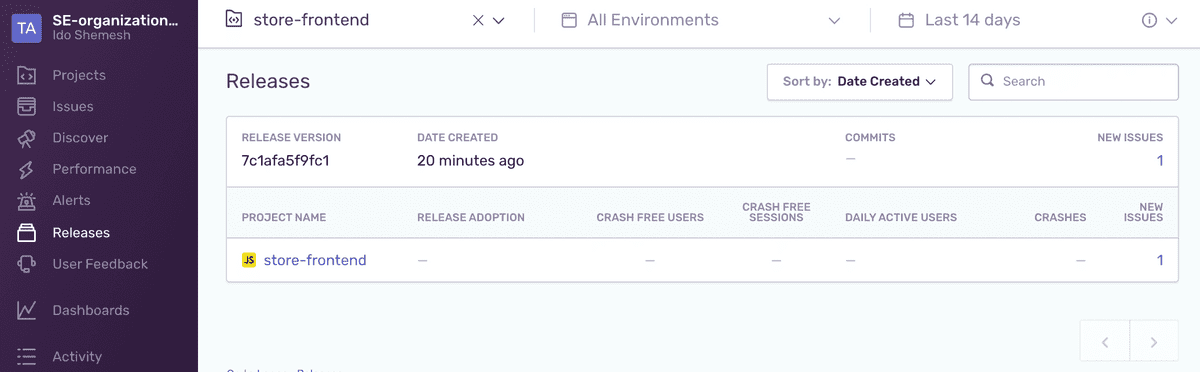
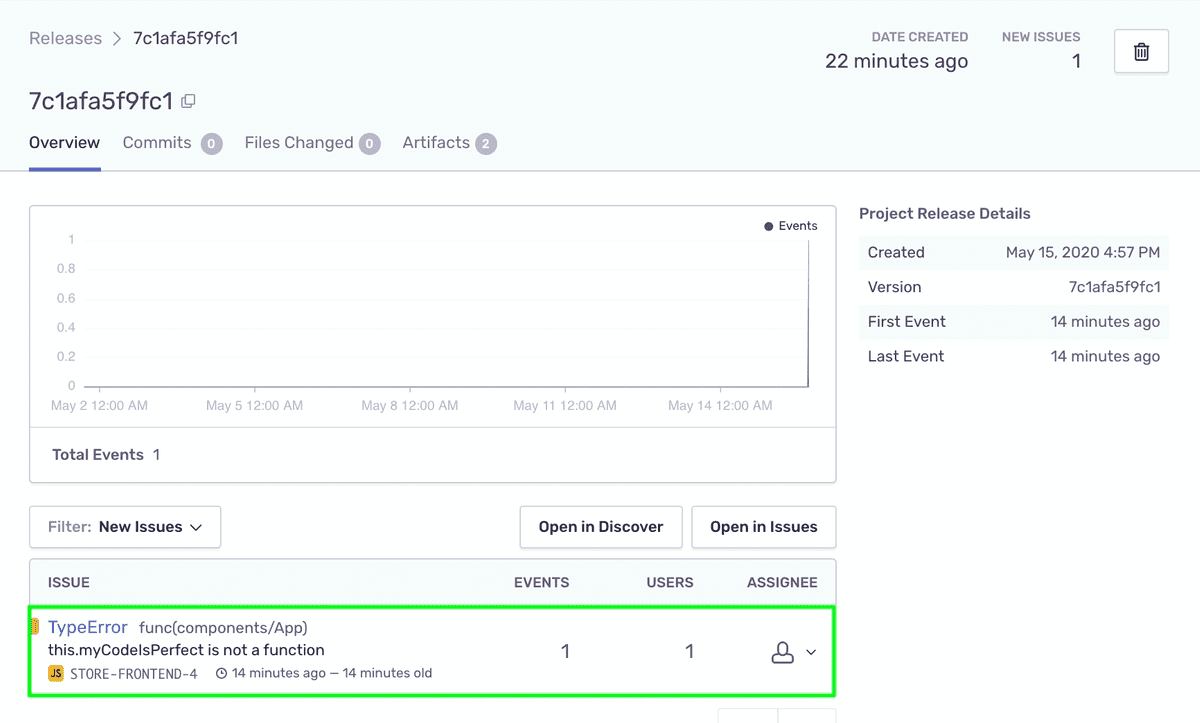
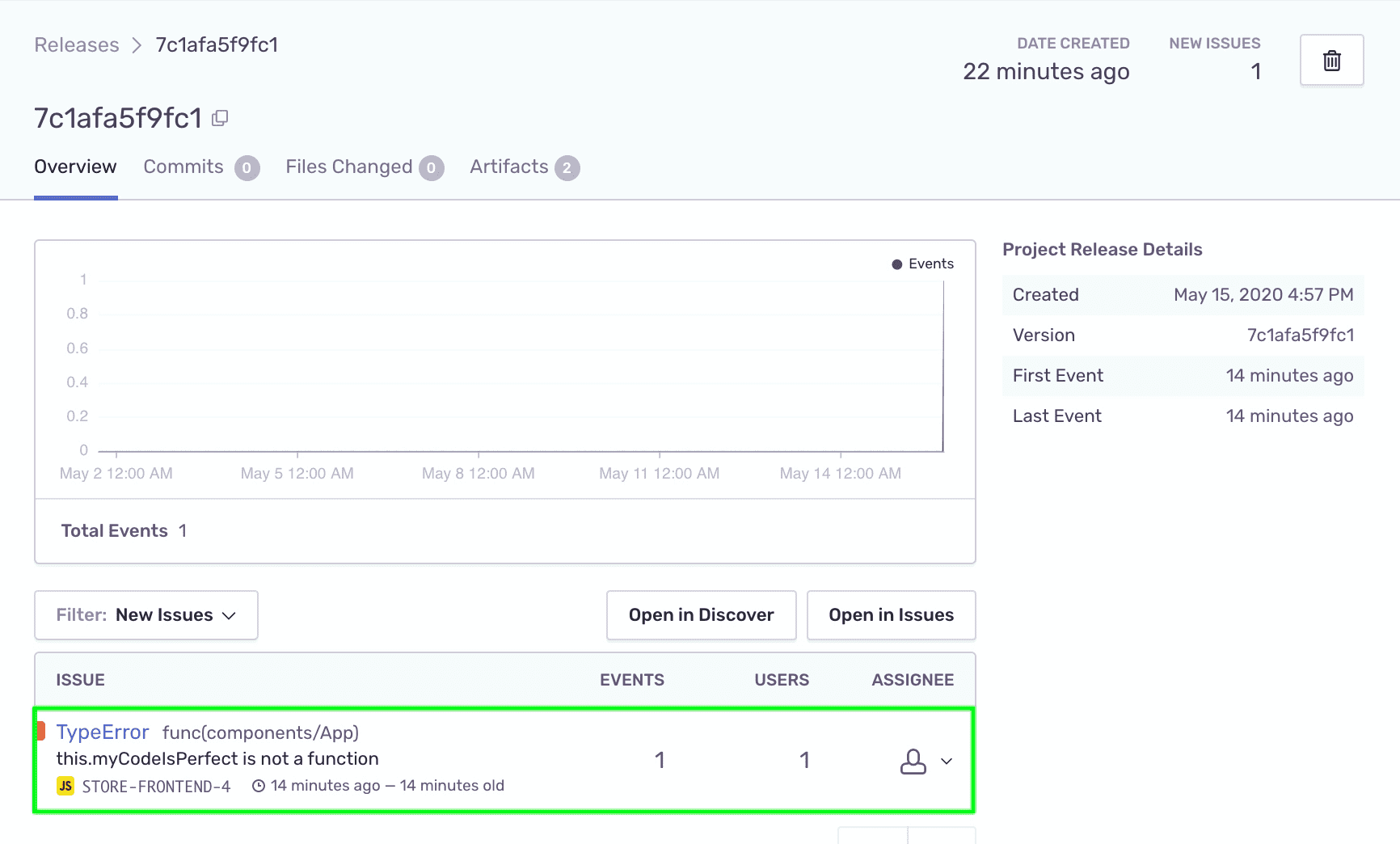
Click on the release, notice that the error in your app has been associated with this release and is listed as a New Issue
Click on the
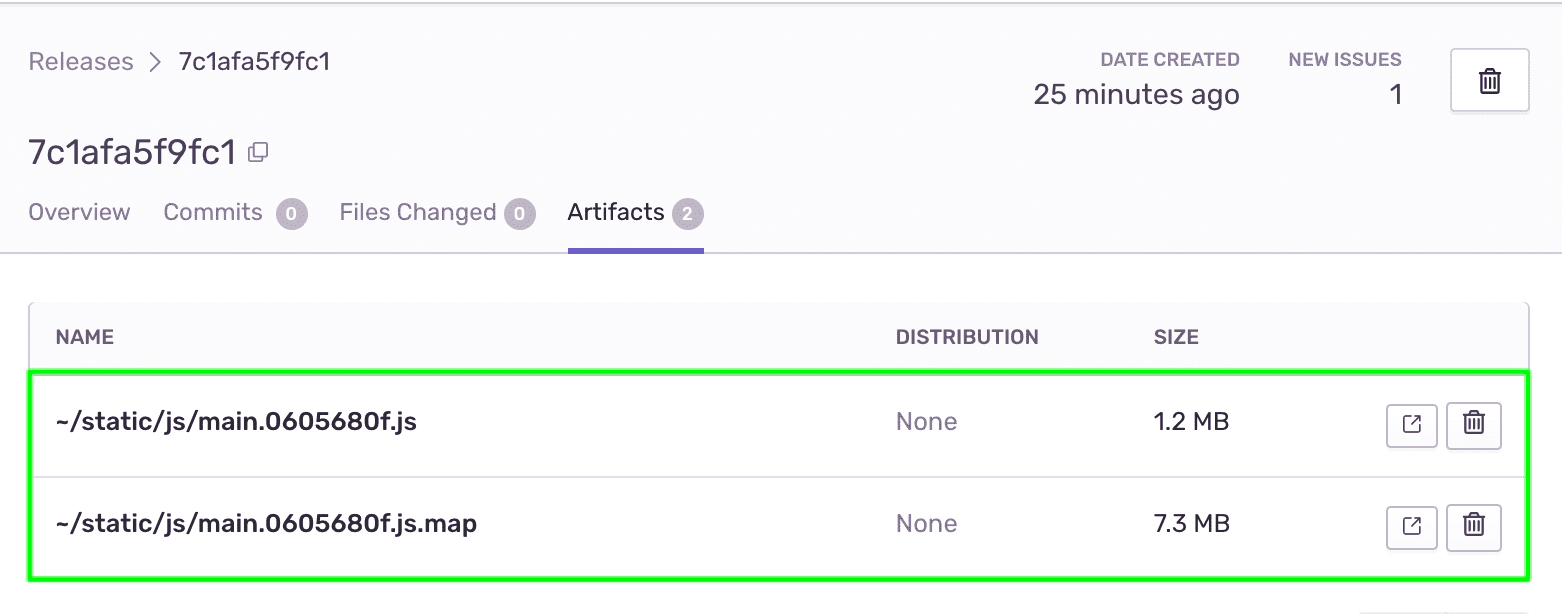
Artifactstab, notice the minified resources and source maps are available for this release and used to source map stack traces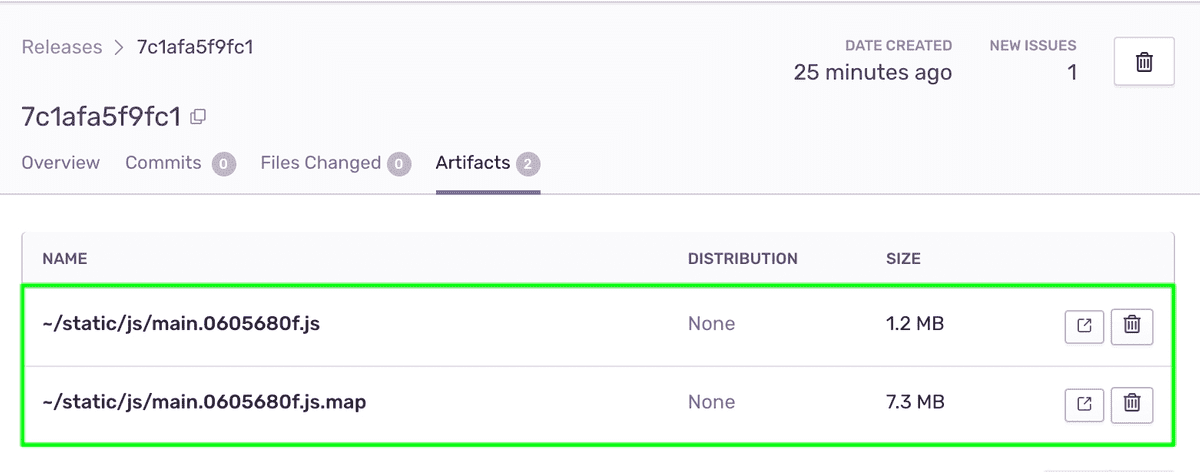
Next
Now that we have all the information we need about the error and a clear stack trace, the next thing is to assign the right developer to handle it.